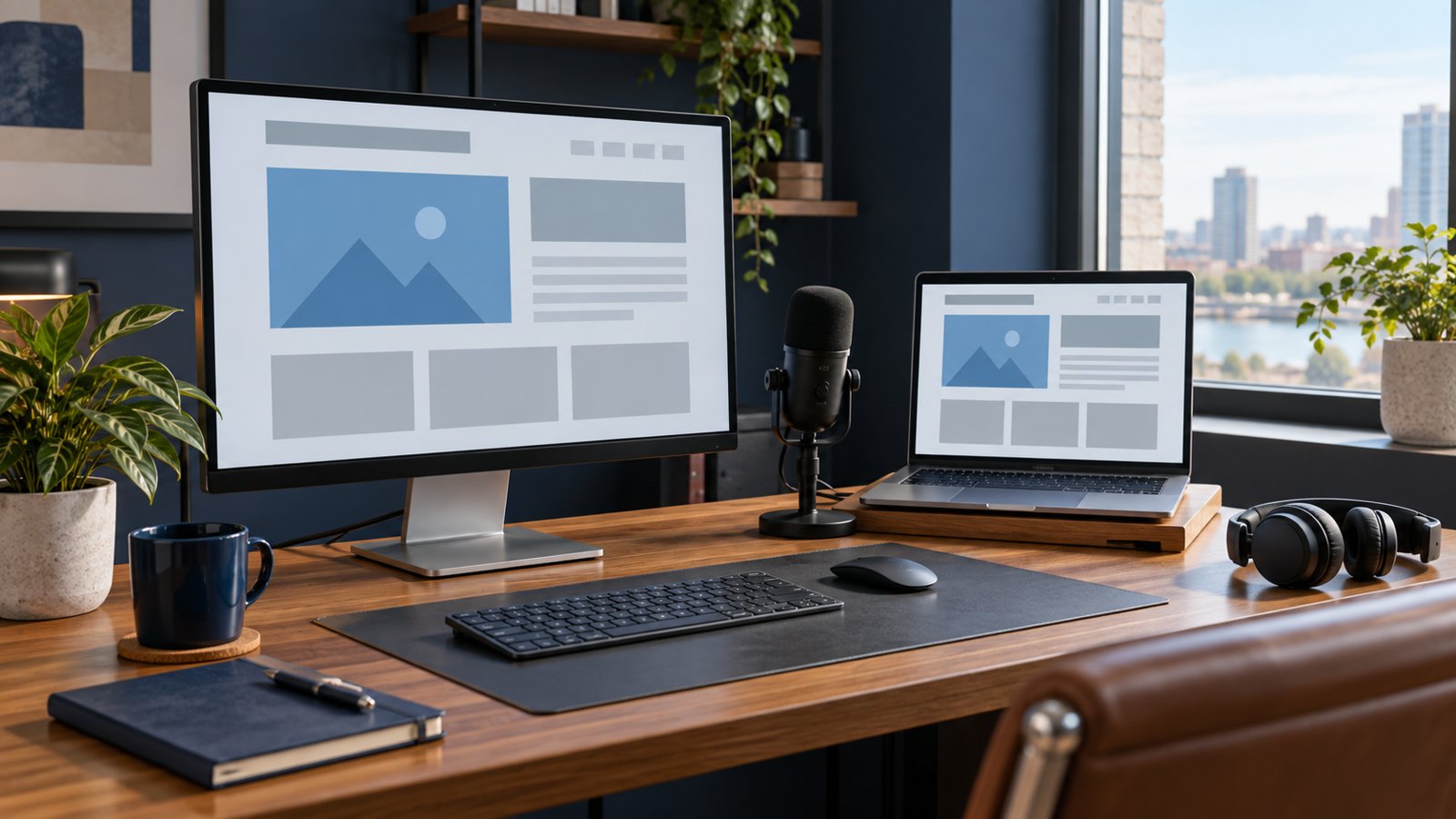
Website demo video production turns a website task into a short, guided explanation of what a visitor can do and what happens next. A useful demo follows an actual customer journey, such as finding a service, comparing options, or submitting a request. It gives viewers enough context to recognize the task and repeat it on their own.
For marketing teams, the difficult part is choosing what to show. A homepage, a pricing page, and a customer portal each answer different questions. Austin Visuals creates animation and video content for businesses explaining products, services, and digital experiences. A website demonstration video needs that same attention to the viewer’s starting point, with particular care around small interface details and changing page designs.
Planning a website walkthrough for your customers? Contact Austin Visuals to discuss the journey you need to explain.
Give your website demo video one customer task
Choose a task with a clear beginning and a visible result. “Show our new website” is too broad to guide a script. “Help a purchasing manager find the correct service and request a quote” tells the production team which pages matter and which screens can be left out.
Write down what the viewer already knows. A returning customer may recognize your navigation but need help locating a new document. A first-time visitor may need a sentence about the service before any clicking begins. Those audiences should not have to sit through the same introduction.
Define the end of the journey before recording. If the video demonstrates a request form, show the confirmation state and explain the next expected step using approved wording. Do not promise a response time that the business has not committed to. If an account is required, make that requirement visible before the viewer starts following along.
A practical scope statement includes the audience, task, starting page, destination, and main uncertainty. For example: “Help an existing member locate a downloadable resource, starting from the account homepage, and explain which download format to choose.” This fictional example is specific enough to review without committing to a finished script.
Separate a walkthrough from a promotional overview
A website walkthrough video shows the steps needed to complete a task. A promotional overview explains why someone might use the site or service. Both can be useful, but the required footage and narration differ.
| Viewer need | Useful video approach | What to show |
|---|---|---|
| Understand the service | Brief overview | The service, a recognizable use case, and the destination for more information |
| Complete a website task | Guided walkthrough | The starting page, important choices, and confirmation state |
| Learn a newly changed feature | Focused update | Where the feature moved and what now works differently |
| Evaluate a complex digital offering | Detailed demonstration | A relevant journey with explanations of important conditions |
Use this distinction to decide where the video belongs. An overview can introduce a service page. A task-specific recording often belongs beside the instructions for that task. Placing an advanced account tutorial on the homepage can confuse visitors who have not yet decided whether they need an account.
A video about a website also differs from a video simply embedded on a website. A filmed product demonstration can sit on a landing page without showing any website navigation. Clarify that distinction in the production brief so everyone prepares the correct material.
Plan the screen sequence before capturing footage
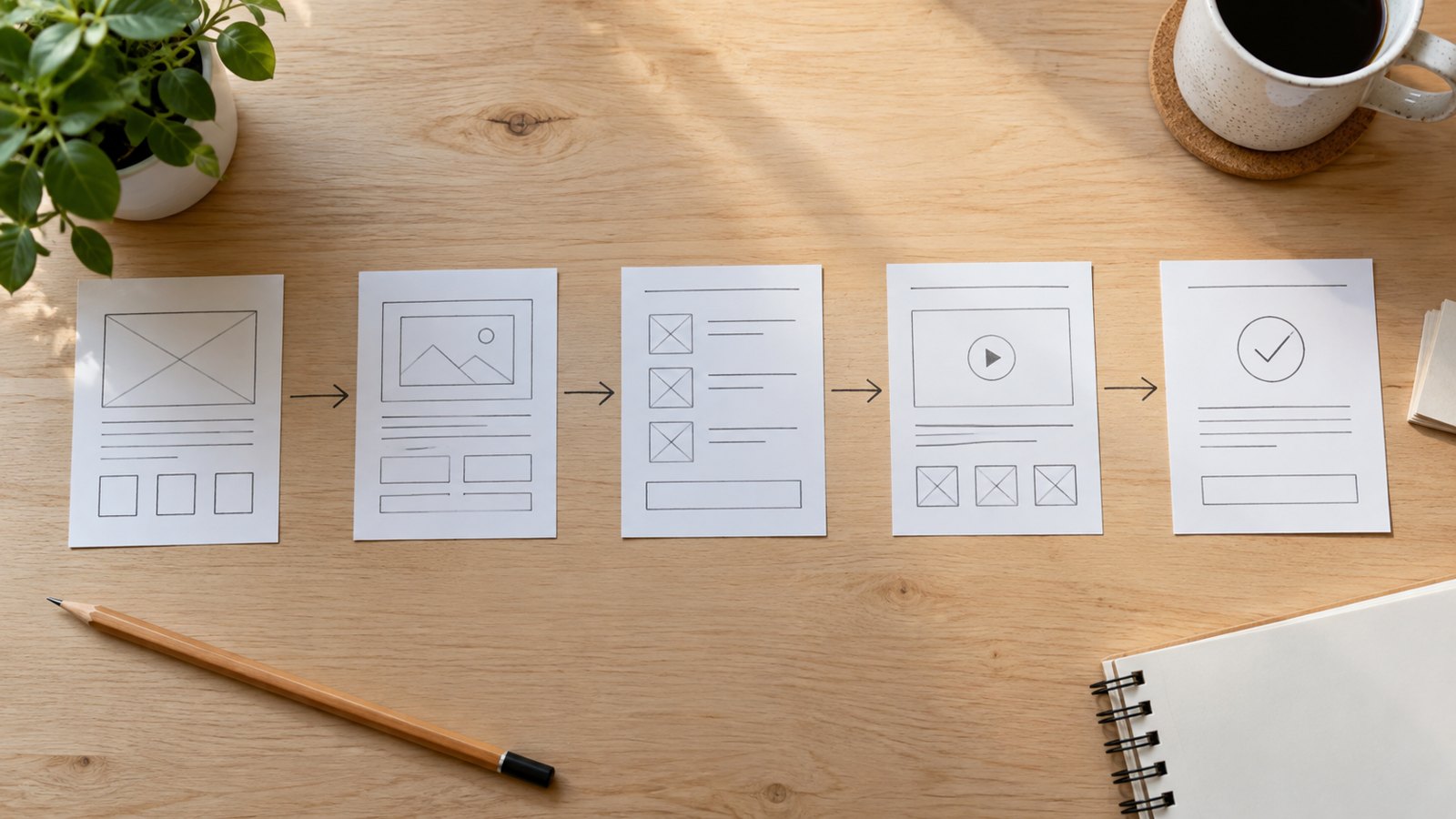
Map each meaningful decision to a screen or shot. The viewer should understand where the action happens, what changes after the action, and why the result matters. A page with many controls may need a wide orientation shot followed by a closer view of the relevant area.
For a fictional equipment rental website, the sequence might begin with choosing an equipment category, then selecting a rental location, reviewing availability, and sending a request. The production plan should account for the site’s actual behavior. If availability is confirmed by a staff member later, the video must not imply that submitting the form reserves equipment immediately.
Prepare a simple shot list with four columns: screen, action, narration, and review note. Use the review note to record questions such as whether a filter exists on mobile or whether a confirmation message changes by region. Resolve those questions before a narrator records final audio.
Keep a reference capture of the complete journey for the editor. Individual close-ups are easier to understand when the editor can see their position within the real sequence. Record the expected empty, loading, and completed states when those states affect the explanation. You can shorten routine waiting in the edit while preserving a truthful account of the process.
Prepare a clean, realistic recording environment
Use a controlled demonstration account and approved sample content. Screen recording can expose information outside the central browser window, including notifications, bookmarks, account names, and autocomplete suggestions. Review the whole capture area before every take.
Populate the demonstration with realistic examples that do not belong to actual customers. An empty search result or blank account can make a useful feature look broken. Conversely, a fully populated sample should not imply integrations, permissions, or paid features that every customer receives.
Record a short test before the full session. Check whether the pointer is visible, menus open correctly, and important text survives the intended crop. Keep browser zoom and window size consistent across takes. A jump between two different interface scales can make a continuous journey look like a different website.
If the site is being redesigned, agree on which build is approved for recording. A concept layout can support a launch presentation, but label it as a preview when it differs from the released experience. Schedule a final product-owner review near delivery, especially when navigation or form behavior is still changing.
Write narration around decisions and results
Narration should explain what the visitor needs to understand at each step. Reading every visible menu label adds time without necessarily helping. Use the website’s actual terminology for important controls, then explain the consequence of the choice.
For instance, “Choose your location to see the services available there” explains both the action and its purpose. “Click this button here” becomes unclear if the viewer looks away or listens without seeing the pointer. Name the relevant control when that name helps someone find it.
Read the script alongside the screen sequence. Leave room for menus to appear and for viewers to read the result. When an instruction needs several sentences, consider dividing the task into shorter sections. Increasing narration speed usually makes an already dense section harder to follow.
There is no universal ideal runtime for a website demonstration video. Start with the smallest complete task and time a rough version. A simple path may need little explanation; a complex portal may need chapters or separate tutorials. Let the task and viewer expectations determine the length, then remove repetition.
Check mobile readability and accessible playback
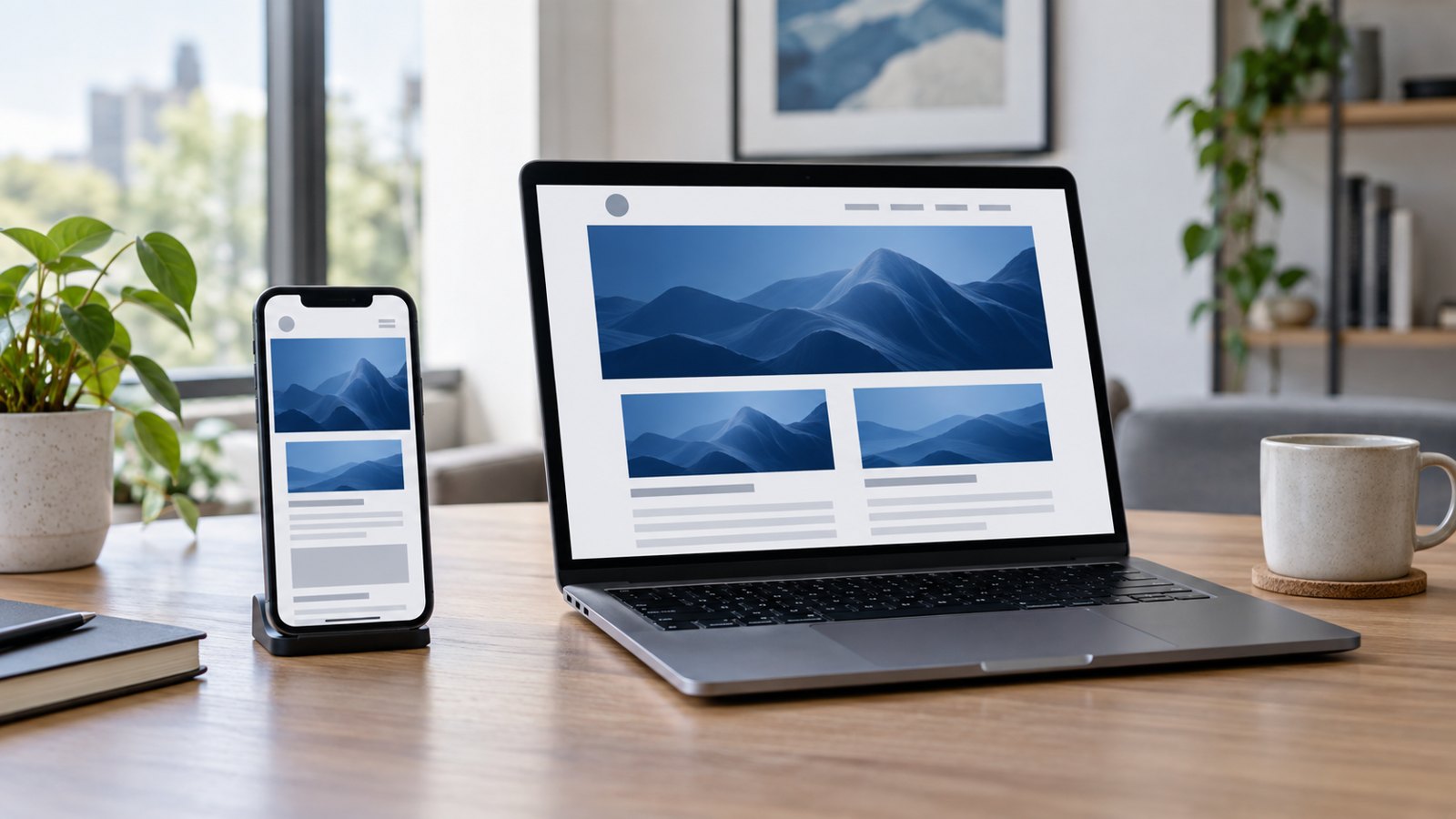
Review the video at the size visitors will actually see it. A desktop recording that looks sharp on an editing monitor may become unreadable inside a phone-sized player. Crop toward the decision area while keeping enough surrounding interface to preserve orientation.
Sometimes the mobile website follows a different path. In that case, create a mobile-specific recording or state clearly that the demonstration shows the desktop experience. Simply placing a desktop capture inside a phone frame does not demonstrate the mobile journey.
Plan captions and any additional description with the script. The W3C guidance on accessible audio and video covers captions, transcripts, descriptions of visual information, and accessible players. For a website walkthrough, spoken instructions should carry essential meaning instead of relying entirely on a moving pointer.
Check captions against real menu labels and make sure they do not cover the button being demonstrated. Test playback controls with the site team, including pausing and seeking. If the video conveys a necessary instruction, provide an appropriate text alternative so the visitor can find that instruction without repeatedly replaying the recording.
Place the video where it helps the next action
Embed the video near the question it answers and give it a descriptive label. “How to request a project quote” tells a visitor more than “Watch our video.” Keep the relevant page link or action available beside the player so viewers can continue when they are ready.
Coordinate loading behavior with the website developer. A large video or third-party player can add unnecessary work to the page. Google’s web.dev guidance on loading video discusses approaches such as controlling preload behavior and delaying offscreen embeds. The appropriate implementation depends on whether the video is immediately visible and essential to the page.
Review success in the context of the task. A support walkthrough might be assessed through task completion and recurring support questions. A service-page demo might be assessed through relevant inquiry activity. Views alone cannot show whether the explanation worked, and visitors who watch a video may differ from those who skip it.
Assign an owner to review the recording after website updates. Keep the script, source captures, captions, and final exports together. A small navigation change is easier to address when the editor can replace one section without reconstructing the full project.
How Austin Visuals helps explain digital customer journeys

Austin Visuals provides explainer video production and animation for businesses that need to explain an offering clearly. A website project can use a combination of approved interface footage and motion graphics to connect individual actions with the service they support.
Bring the current website, the intended audience, and one priority journey to the discussion. Include brand assets, page access requirements, and the names of the people who can approve website behavior and messaging. If the site changes frequently, discuss a modular edit and the scope of future updates before production begins.
Motion graphics can help explain an offscreen process, such as how a request moves between teams. Keep that explanation consistent with actual operations. The finished website demo video should help a visitor recognize a useful path and understand what to expect at its end.
Our Clients include:
Ready to explain your website’s customer journey?
Austin Visuals can help plan visual content around the task your visitors need to complete. Discuss your project at info@austinvisuals.com or call (512) 591-8024.
Frequently Asked Questions
What is a website demo video?
A website demo video shows how to use a website or complete a specific online task. It usually combines screen footage with narration, captions, or visual guidance.
How long should a website demo video be?
Make it long enough to show one complete task clearly. Time a rough version and remove repetition; divide complex journeys into separate videos or chapters when that makes them easier to follow.
Can we create a demo before the website launches?
Yes, using an approved staging site or prototype. Identify unreleased or illustrative behavior clearly, and review the video against the live website before publishing it as a customer tutorial.
Should the demo show desktop or mobile screens?
Show the experience your intended viewers will use. If navigation differs substantially between desktop and mobile, separate recordings can explain each path more accurately.
Do we need narration and captions?
Narration can explain decisions that are difficult to convey through clicking alone. Plan captions for spoken content and assess transcripts or descriptions of important visual information for the intended audience and player.
When should we update a website demo?
Review it when navigation, page labels, task steps, or promised outcomes change. Keep an owner and source files assigned so outdated sections can be replaced efficiently.
Related Articles
- What is an explainer video?
- Different types of explainer videos
- Planning product demo video production